Student walking on campus with red background

Privacy Mode

Privacy mode allows you to share your screen without providing identifying information about students or their records.


When you are logged in to BDP, click your initials in the upper right corner and then click on settings.
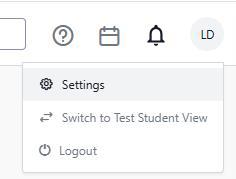
A dropdown menu showing options for Settings, Switch to Test Student View, and Logout. The menu is accessed by clicking an icon next to a user profile circle labeled with the users initials and includes icons representing each option.

Near the bottom of the settings options is Privacy Mode. When the box is unchecked, privacy mode is off. Check the box to turn it on.

Off:
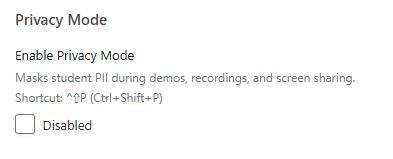
Screenshot of settings panel showing Privacy Mode options for masking student PII during demos, recordings, and screen sharing. Includes a checkbox labeled Disabled and a keyboard shortcut (^⇧P) for enabling Privacy Mode.

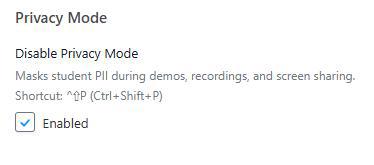
On:

Screenshot of settings panel showing Privacy Mode options with a checkbox labeled "Enabled" selected. Text explains that enabling Privacy Mode masks student PII during demos, recordings, and screen sharing, with a keyboard shortcut Ctrl+Shift+P.

When Privacy Mode is on, there will be an orange notice at the top of your screen:

A screenshot of a notification bar indicating "Privacy Mode is enabled" with an orange background. It includes a lock icon on the left, a "Disable" button in the center, and a gear settings icon on the right.

Using the gear icon, you can decide what you would like to have hidden:
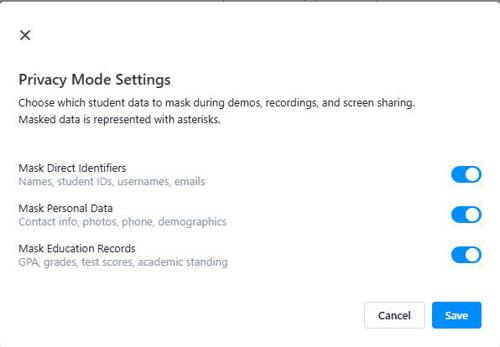
Screenshot of Privacy Mode Settings panel for masking student data during demos, recordings, and screen sharing. Three toggle options enabled in blue include masking direct identifiers, personal data, and education records, with buttons for Cancel and Save at bottom right.

Much of the student data will be hidden:
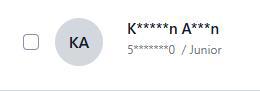
Screenshot of a user interface showing a partially obscured username and ID with a junior status label. The interface includes a checkbox on the left and a circular avatar placeholder with initials in gray.

When enabled, Privacy Mode while remain enabled until disabled. Privacy mode can be disabled using the Settings menu or by clicking Disable in the orange bar at the top of the screen.