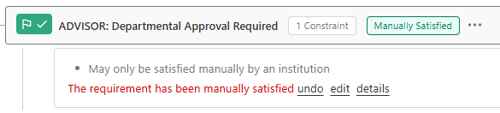
Manually Satisfy
This exception can only be posted to a requirement that is set up to be manually satisfied. These are considered milestones, so all course requirements on the audit could be complete, but the entire audit will not be complete without all milestones also being completed.
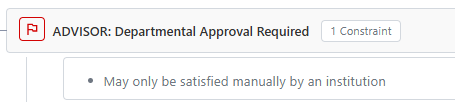
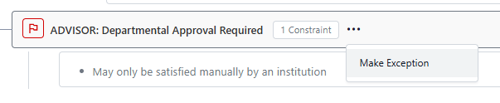
Use the three dots next to the requirement name where you would like to manually satisfy a requirement to open the options menu. Select “Make Exception.”
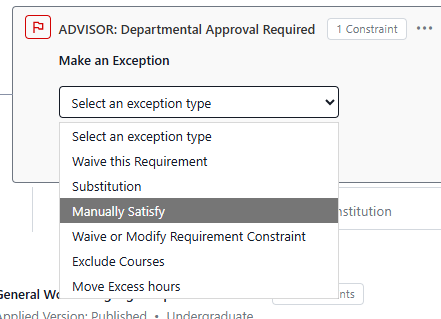
On the menu, select “Manually Satisfy.”
Enter a justification and click submit. The requirement is now manually satisfied. You can see the green box where it indicates that it was manually satisfied. You can click on it to see more details.